Animation
Animation is in alpha and may change. If you have feedback, open a GitHub issue.
Use style.animated to animate a shape or connection on a single board.
To show a sequence, use animate-interval to play boards in order.
Set animate-duration to control how long a transition takes. Steps
can animate styles, variables, and grids. Pencil shading and text decorations
also animate between consecutive layers and scenarios.
The default duration is 0, so boards change instantly.
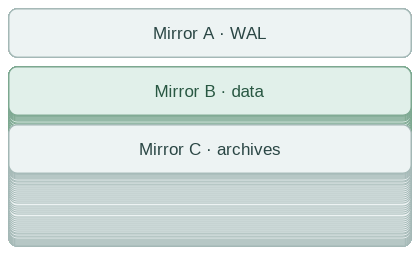
This example is an animated SVG you can embed in a GitHub README.

View D2 source
Configuration
The 1-second interval includes the transition. Each animated step spends 400 ms changing and holds its final state for the remaining 600 ms.
Export to SVG or GIF. The CLI accepts durations in milliseconds.
Animate styles
The following properties animate when their values change in a step.
Opacity
View D2 source
Fill
View D2 source
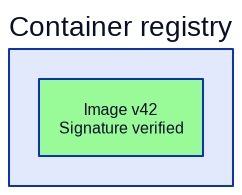
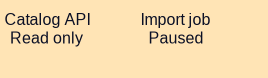
Set style.fill on the board to animate its background color.
View D2 source
Pencil shading
In sketch mode, changing a shape’s solid fill shades it in with pencil strokes.
Changing the fill to transparent erases it.

View D2 source
Stroke
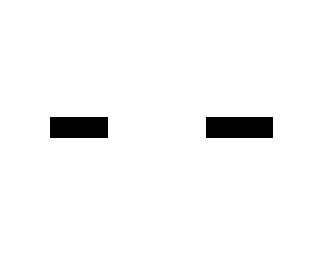
Set style.stroke to animate the outline of a shape or the color of a connection.
View D2 source
Font color

View D2 source
Text decorations
Keep the same object ID and label text. Set style.underline on a shape or
connection to draw an underline, or wrap a Markdown span in ~~ to draw a
strikethrough. Removing the decoration retracts the line. Both work in regular
and sketch mode.

View D2 source
Stroke width

View D2 source
Stroke dash

View D2 source
Border radius
View D2 source
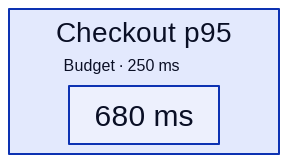
Font size
View D2 source
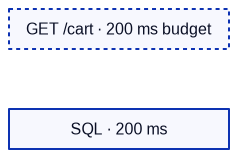
Width
View D2 source
Height

View D2 source
Change a gradient
Animate a gradient by changing its color stops or angle between steps.
Fill a progress bar

View D2 source
Fade one end of a fill
View D2 source
Expand a radial gradient
View D2 source
Rotate a gradient

View D2 source
Send a pulse along a connection
View D2 source
Animate with variables
Use the same variable in several places to animate them together.
Count in a label
View D2 source
Share a color

View D2 source
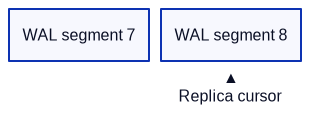
Move a pinned shape
With TALA, bind left or top to a numeric
variable and change the variable in a step. Setting the coordinate directly
in the step moves the shape immediately.
View D2 source
Grid animations
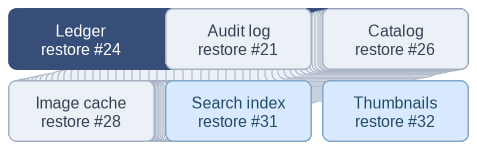
When a grid changes, D2 matches cells by ID. Cells that keep their IDs can move to new slots. New cells grow into place, and removed cells shrink away.
Reorder cells
A grid fills in declaration order.
To move a cell later in that order, remove it with null and redeclare the
same ID in the same step.
View D2 source
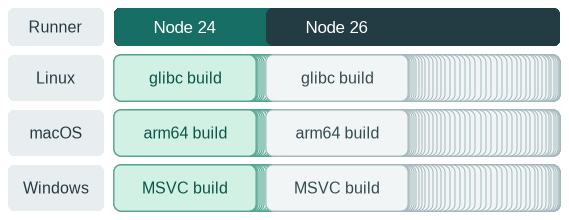
Add or remove a row or column
Insert or remove a complete row or column in a filled grid. Keep the other cells in the same relative order. The row or column grows or shrinks as a group.
View D2 source
Replace a cell in place
In a grid with at least two cells, replace one plain rectangle with a new ID in the same slot. Keep its size and style, and leave its neighbors in place. Use centered, single-line labels. The label rolls inside the outline. Equal-length monospace labels can keep a shared prefix in place.

View D2 source
Expand or collapse a cell
Keep a rectangular cell's ID and give it a larger nested grid. Each child appears when it fits. To collapse the cell, remove its children and restore its original dimensions.